

Introduction:
This article explains how to setup Microsoft Authenticator manually.
Prerequisites:
Before we begin you will need;
- Your Smart Phone (with Microsoft Authenticator installed)
- Your Microsoft 365 email address and password.
- Laptop or Desktop computer to log in to your account.
Technical Level:
Low
Multi-Factor Authentication (MFA) is a security method that requires you to verify your identity using more than one piece of information when signing in. After entering your password, you may be asked to verify your identity by providing a onetime passcode to the Microsoft Authenticator App on your phone.
If your password was to be compromised, unauthorised users cannot access your account without your approval in the Microsoft Authenticator App.
If your employer, manager, or IT administrator has asked you to set up Multi-Factor Authentication (MFA), or if you want to enable it yourself, these steps will guide you through the process.
Microsoft 365 Security Info Page
First, navigate to the Security Info page of your Microsoft 365 account. It is recommended that you do this on a device other than your phone, as you will need to scan a QR code during the setup process. If you access the Security Info page on your phone, you will not be able to scan the QR code required to complete the setup. Two methods to do this listed below;
Method 1
Open your internet browser (eg Edge or Chrome) on your laptop or desktop computer.
Go to the webpage www.office.com.
Click on Sign in.
Enter your work email address and click Next.
Enter your work password and click Sign in.
After signing in click your Name or Initials, which will be either in the top right corner or the bottom left corner of the web page.
Click View Account.
Click Security Info (under My Account) on the left.
Method 2
Click this link and it will take you to the Security Info page.
Sign in with your work email address and password.
Adding the Microsoft Authenticator
On the Security Info page, you will see all the authentication methods currently configured for your account. At a minimum, your account will have a password set up.
It is possible to have multiple Microsoft Authenticator methods associated with an account (for example, if it is a shared account). However, if you are replacing an existing authentication method, we recommend removing any methods that are no longer in use or that you no longer have access to.
To add the Microsoft Authenticator click on Add sign-in method.
Select Microsoft Authenticator.
You will be asked to install the app, which you should have already done, if you haven’t follow this guide. Else click Next.
On the “Set up your account in app” page, click Next.
You will now see a QR code on the screen.
Now open up your Microsoft Authenticator app on your Phone.

Tap on the + sign ion the top right.

Select Work or School Account.

Select Scan QR Code.
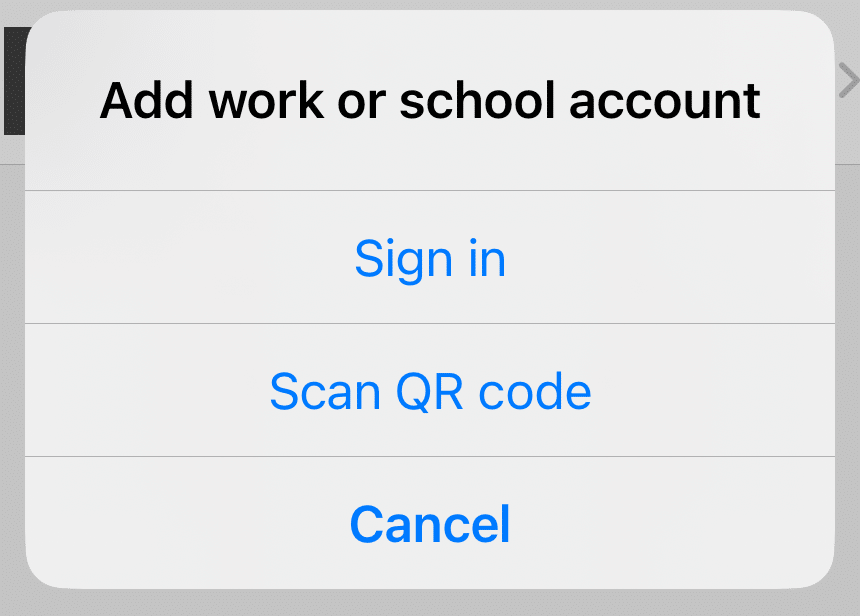
Give the app permission to access your camera and point the phones camera to the QR code on the screen. After a few seconds you should see your Microsoft account listed in the Microsoft Authenticator app.
Now you have scanned the image, click Next on the page “Scan the QR code”.
You will then be presented with a code on the computer.
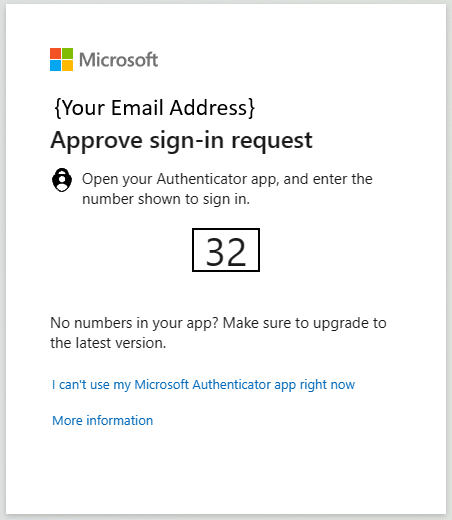
Enter the code you need on the computer screen and tap Yes.
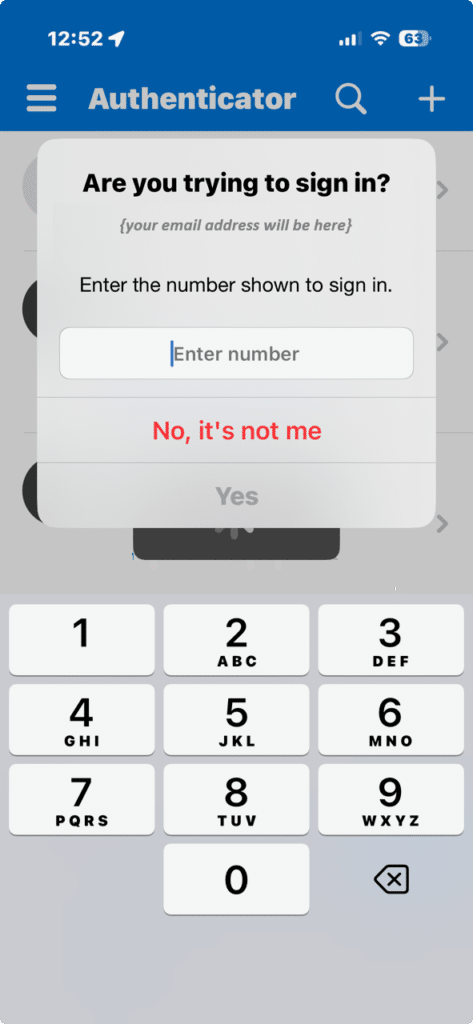
If it as been successful you see your account listed in the Microsoft Authenticator Smart Phone app.
If it as been successful you will see Microsoft Authenticator added as a sign-in method on the computer screen.
E&OE. Copying of this document, or text & images associated with it, is strictly prohibited. Imagery taken from Microsoft software is solely used for advice and training, Microsoft , Microsoft Windows and Microsoft Office are either registered trademarks or trademarks of Microsoft Corporation in the United States and/or other countries. Pro Logic Computers (UK) Ltd or its agents accept no responsibility for the content of this document or results from actions taken by it. This document is provided as is, with no warranty or liability.