

Introduction:
This article explains how to install the Microsoft Authenticator on your Smart Phone.
Prerequisites:
Before we begin you will need;
- Your Smart Phone
- You may need your Smart Phone App Store login details
Technical Level:
Low
Microsoft Authenticator protects your account from unauthorised access. If you or someone else tries to access your account you will be prompted to verify this via the app, thus making sure the access to your account is genuine.
Install the Microsoft Authenticator App
You will require the Microsoft Authenticator App which you can download from the Google Play Store or Apple App Store. If you already have the Microsoft Authenticator app installed on your Smart phone you can skip this step and go to Setting up Microsoft Authenticator.
Method 1
If you are viewing this website on your Smart Phone you can follow the links below to open up the App Store.
- Follow this link if you are using a Google based smart phone : Microsoft Authenticator – Apps on Google Play
- Follow this link if you are using a Apple based smart phone : Microsoft Authenticator on the App Store (apple.com)
Method 2
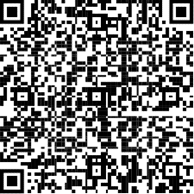
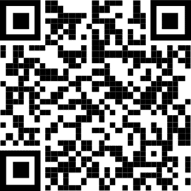
If you are viewing this website on your laptop or desktop computer you can scan this QR code using your camera to open up the App Store.
To install Microsoft Authenticator for Android devices use this QR Code..
To install Microsoft Authenticator for Apple iOS devices use this QR Code..
Method 3
Or you can manually search for the app in your app store.
Open up your App Store on your Smart Phone and search for “Microsoft Authenticator”.
Please note is may not be the first app in the search results, sometime sponsored apps appear first. Make sure you download the genuine Microsoft Authenticator app, the icon for the app will look like this..

When you first run the app you will be asked permission to allow the app to send you push notifications, it is recommended to say yes, this way you will get MFA prompts without having to open the app.
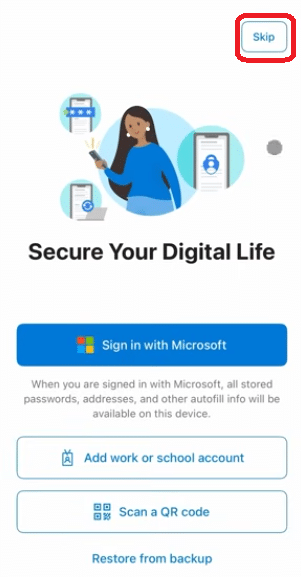
Then Accept the privacy statement and then you will be asked to sign in. You can skip this section.
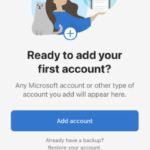
You should now see this screen on your phone.
E&OE. Copying of this document, or text & images associated with it, is strictly prohibited. Imagery taken from Microsoft software is solely used for advice and training, Microsoft , Microsoft Windows and Microsoft Office are either registered trademarks or trademarks of Microsoft Corporation in the United States and/or other countries. Pro Logic Computers (UK) Ltd or its agents accept no responsibility for the content of this document or results from actions taken by it. This document is provided as is, with no warranty or liability.