

Introduction:
This article explains how to use the Report Message add-in found within Outlook to report potential phishing and junk emails to Microsoft and the National Cyber Security Centre (NCSC) if setup
Prerequisites:
Before we begin you will need;
- The Report Message add-in enabled by your system administrator.
Technical Level:
Easy
Use the built-in Report button in Outlook to report junk and phishing messages
- Users can report a message as junk from the Inbox or any email folder other than Junk Email folder.
- Users can report a message as phishing from any email folder.
In a supported version of Outlook, select one or more messages, select Report, and then select Report phishing or Report junk in the dropdown list.
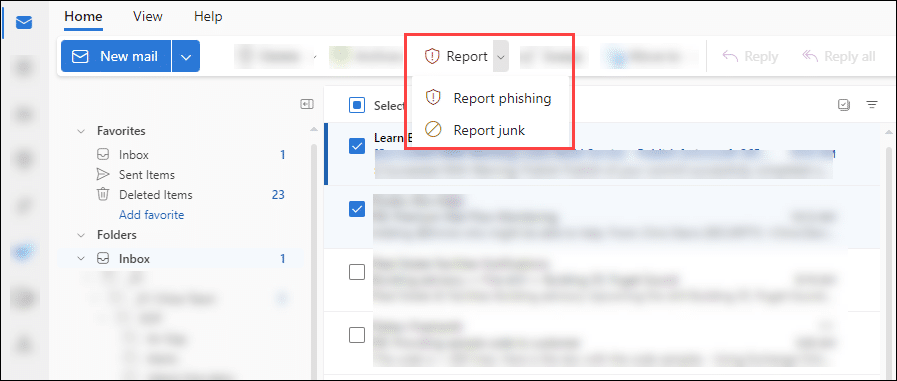
- Reported as junk: The messages are moved to the Junk Email folder.
- Reported as phishing: The messages are deleted.
Use the built-in Report button in Outlook to report messages that aren’t junk
In a supported version of Outlook, select one or more messages in the Junk Email folder, select Report, and then select Not junk in the dropdown list.

The Report Message and Report Phishing add-ins for Outlook and Outlook on the web (formerly known as Outlook Web App) enable you to easily report false positives (good email marked as bad) or false negatives (bad email allowed) to Microsoft and its affiliates for analysis.
When a email is selected you will see the Report Message add-in on your Outlook banner, left click this and you will see these options:

Report a message
If you choose the Report Message button on the ribbon, you’ll see several different options.
- Junk
- Phishing
- Not Junk
- Options
- Help
If you choose Junk, Phishing, or Not Junk, you’ll have the option to send a copy of the message to Microsoft, along with your classification of the message. This is optional. To turn off the option to send a copy of the message to Microsoft, choose Options and then follow the steps listed below.
What’s Junk email?
Junk email messages are typically referred to as spam. These are messages that you don’t want to receive that may be advertising products you don’t use or find offensive. If you choose the Junk option, a copy of the message may be sent to Microsoft to help update our spam filters, and the message will be moved from your Inbox to your Junk Email folder.
What’s phishing?
Phishing is the practice of luring you into disclosing personal information, such as bank account numbers and passwords. Often phishing messages look legitimate, but have deceptive links that actually open fake websites. If you select Phishing, a copy of your message may be sent to Microsoft to help update our filters, and the message will be moved from your Inbox to your Junk Email folder.
What’s a legitimate email?
If you know the sender and you’re expecting the message, or if you receive a message that’s mistakenly marked as junk, you can use the Report Message add-in to mark the message as Not Junk. This will move the message from the Junk Email folder back to your Inbox.
Report Message add-in options
Choosing Options from the Report Message button allows you to choose whether messages are automatically sent to Microsoft when they’re reported as junk or phishing attempts.
Change your Report Message options
- Choose Options from the Report Message button on the Ribbon.

- Select one of the following options:
-
Always send a copy of the message to Microsoft
-
Never send a copy of the message to Microsoft
- Ask before sending a copy of the message to Microsoft
-
- Once you’ve made your selection, choose Save. You’ll see the following message in the InfoBar in the message header confirming your changes were saved successfully.
By reporting suspicious emails, you will help to keep yourself, colleagues, and your organisation safe. Reported emails are submitted to Microsoft and potentially to the National Cyber Security Centre (NCSC) if setup.
E&OE. Copying of this document, or text & images associated with it, is strictly prohibited. Imagery taken from Microsoft software is solely used for advice and training, Microsoft , Microsoft Windows and Microsoft Office are either registered trademarks or trademarks of Microsoft Corporation in the United States and/or other countries. Pro Logic Computers (UK) Ltd or its agents accept no responsibility for the content of this document or results from actions taken by it. This document is provided as is, with no warranty or liability.