

Introduction:
This article explains how to setup a VPN connection to your office.
Prerequisites:
Before we begin you will need;
- Your VPN Hostname or IP Address
- Your VPN Username
- Your VPN Password
Technical Level:
Mid
1. Set up your VPN connection.
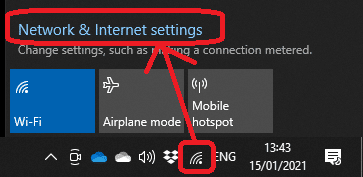
Click on your network icon in the bottom right corner (this example it’s the wifi icon – for computers using a wired connection it will be a computer screen).
Then click Network & Internet Settings.
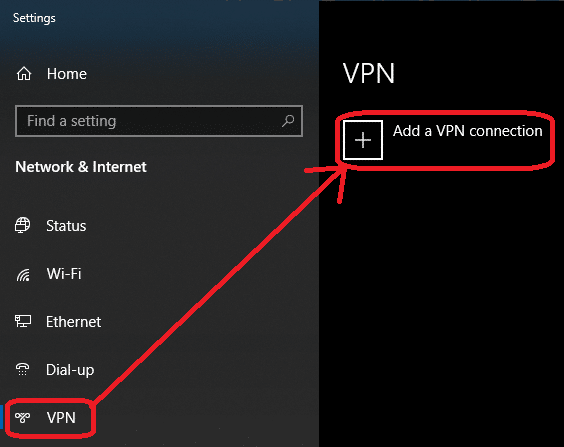
In the settings window click on VPN then Add a VPN connection.
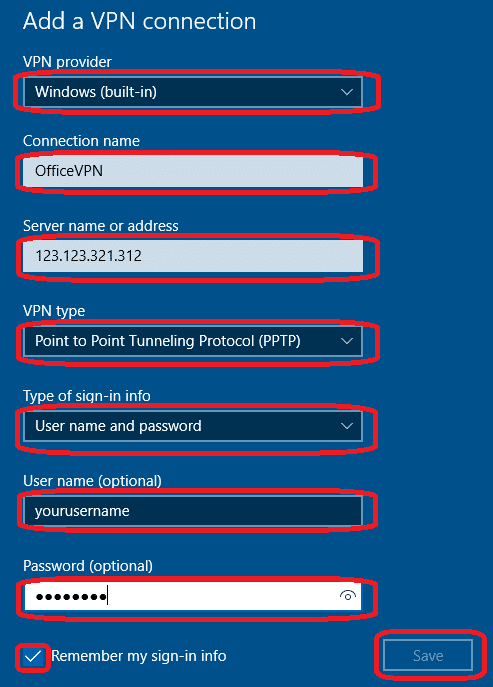
Select Windows (built-in) for the VPN Provider and give your connection a name such as OfficeVPN.
Enter the Server name or address which we would have supplied to you as VPN Hostname or VPN IP Address.
Select Point to Point Tunnelling Protocol (PPTP).
Select Username and password for sign in type.
Type in your username and password. Tick Remember my sign-in info and click Save.
Your VPN is now setup.
2. Disable pass though.
While connected to the VPN your internet traffic will run through the VPN, which may slow down your internet experience.
Unless we have advised otherwise we would recommend you disable pass through.
While you still have the network setting window open click on Change adapter options.
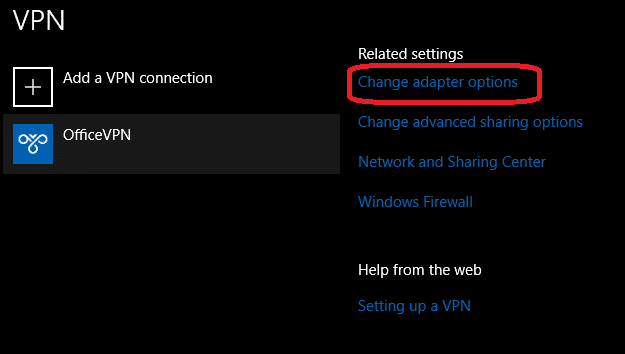
Right click on your VPN connection name and click Properties.

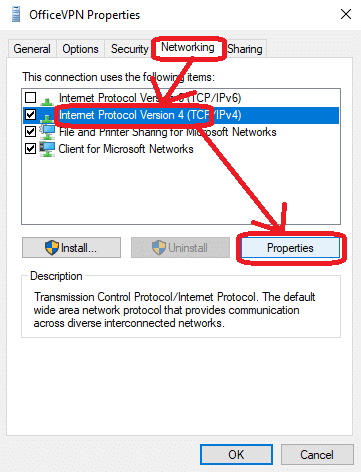
Click Networking, select Internet Protocol Version 4, and then click properties.
Click Advanced, on the next window untick Use default gateway on remote network.
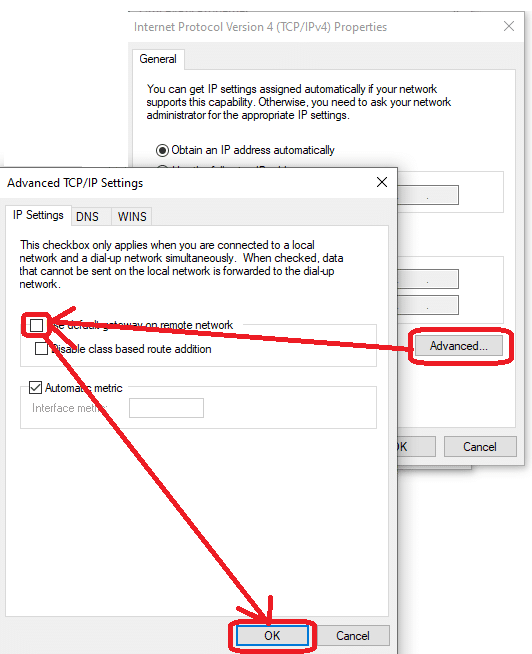
You can now click OK on all the open windows and close the network adaptors window.
3. Connect to the VPN.
To connect to the VPN click on your network icon in the bottom right, click on your VPN connection, then click Connect.
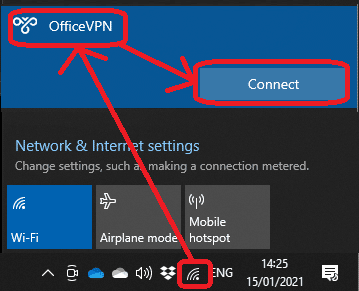
It is advised to disconnect from the VPN when not in use. To disconnect simply click your network icon in the bottom right, click your VPN connection and click disconnect.
E&OE. Copying of this document, or text & images associated with it, is strictly prohibited. Imagery taken from Microsoft software is solely used for advice and training, Microsoft , Microsoft Windows and Microsoft Office are either registered trademarks or trademarks of Microsoft Corporation in the United States and/or other countries. Pro Logic Computers (UK) Ltd or its agents accept no responsibility for the content of this document or results from actions taken by it. This document is provided as is, with no warranty or liability.