

Introduction:
This article explains how to setup multi factor authentication (MFA) also known as two factor authentication on your Microsoft 365 account.
Prerequisites:
Before we begin you will need;
- MFA to be enabled by your system administrator.
- Your Microsoft 365 Email Address.
- Your Microsoft 365 password.
- A mobile phone.
Technical Level:
Mid
Multi factor authentication (MFA) is a good way of protecting your account from unauthorised access. Your password can easily be compromised by all sorts of ways. The most common is typing passwords in to, what you think to be trusted, sites or security prompts sent via emails. Others include using the same password for other services, that in turn, have been compromised. MFA will add an extra layer of security to your account, it will mean you will need to present a code or authorise your login by an app. So unless the person trying to access your access also has your phone your account will be secure.
1. Initiate the MFA Setup
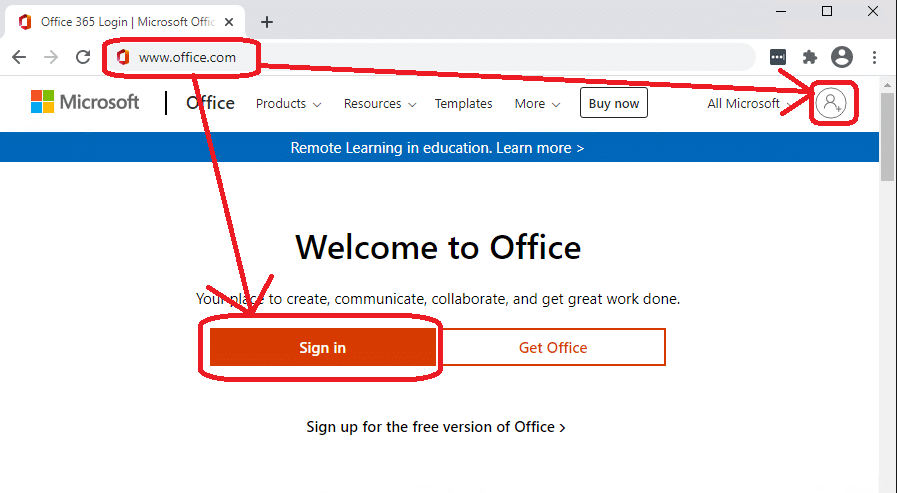
You can either wait for one of your devices to log you out and follow the setup or initiate it yourself. To initiate it yourself simply go to www.office.com (if already signed in – sign out).
Click Sign in.
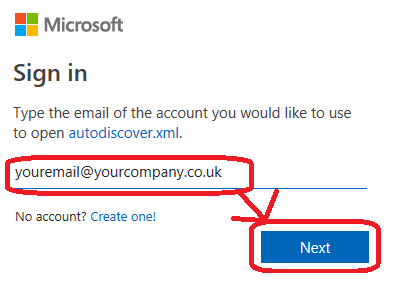
Enter your email Address
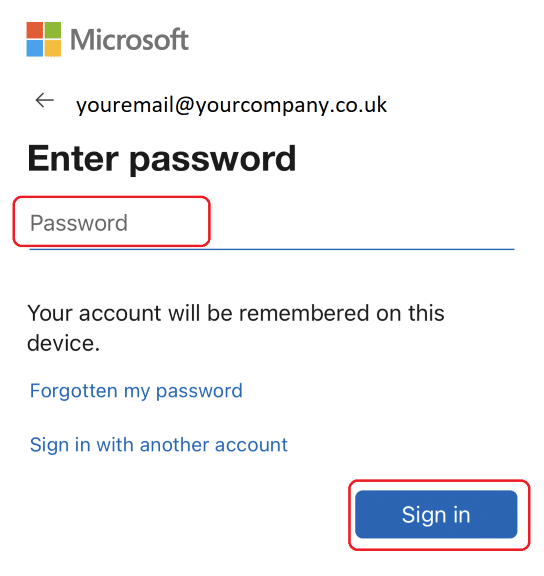
Then your password.
You will then get a prompt to say “your organisation needs more information to keep your account secure” click Next.
Then you will be prompted to setup the Multifactor.
At this step under Other Options select Phone.
Select your country code (UK is +44).
Enter your mobile number without the first zero. Example if your mobile number is 07123456789 then enter 7123456789, so that in the display it will look something like this +44 7123456789.
Microsoft will then send you a 6 digit code to confirm your mobile number, enter this on the screen.
Any requests to access your account will now need to be approved by you via a code sent to your phone.
You’re done.
E&OE. Copying of this document, or text & images associated with it, is strictly prohibited. Imagery taken from Microsoft software is solely used for advice and training, Microsoft , Microsoft Windows and Microsoft Office are either registered trademarks or trademarks of Microsoft Corporation in the United States and/or other countries. Pro Logic Computers (UK) Ltd or its agents accept no responsibility for the content of this document or results from actions taken by it. This document is provided as is, with no warranty or liability.