

Introduction:
This article explains how to remove an email account from Mail App on an iOS (iPhone or iPad) device.
Prerequisites:
None
Technical Level:
Low
You may be required to remove your email account from your iOS device (iPhone or iPad). Maybe there is an issue with it, you maybe giving the device to another user or we have migrated your old email account to another provider. These instructions tell you how to remove an email account from your the iOS MailApp.
From your iPhone or iPad tap on Settings Icon.

Tap on Mail within Settings..

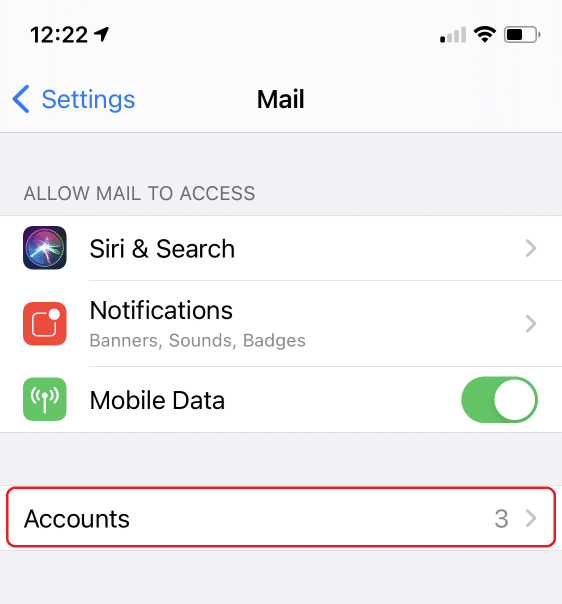
Tap on Accounts.
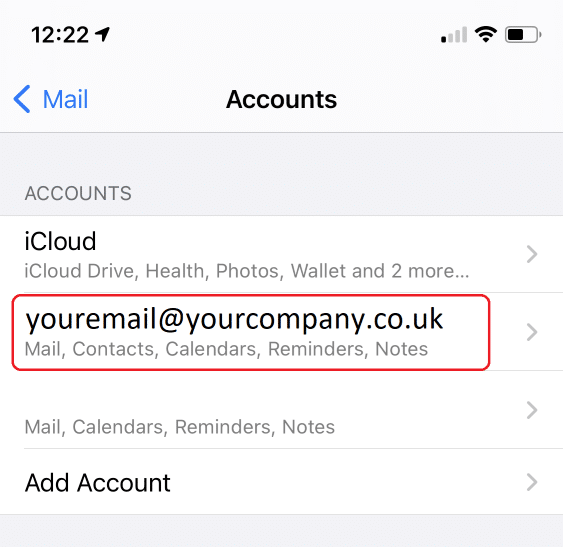
Tap on the the email account you wish to remove.
Tap Delete Account.


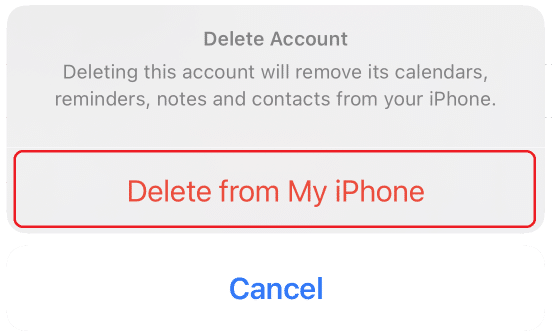
Confirm by tapping Delete from My iPhone / iPad
The account as now been removed.
E&OE. Copying of this document, or text & images associated with it, is strictly prohibited. Imagery taken from Apple software is solely used for advice and training, Apple, iPhone and iPhone are either registered trademarks or trademarks of Apple Inc in the United States and/or other countries. Pro Logic Computers (UK) Ltd or its agents accept no responsibility for the content of this document or results from actions taken by it. This document is provided as is, with no warranty or liability.