

Introduction:
This article explains how to edit a remote desktop connection shortcut so that it will connect to an Azure joined device.
Prerequisites:
Before we begin you will need;
- A saved RDP connection to your remote device
Technical Level:
Low-Mid
If you have not saved a Remote Desktop Connection file please follow this guide first. Create Remote Desktop Shortcut
Type Notepad in the search bar and click on the Notepad App.

Click File then Open.
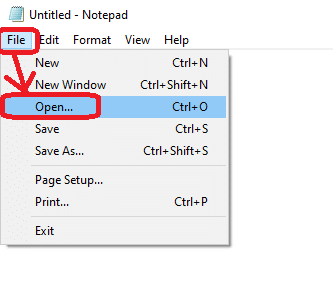
Select the location where you saved the Remote Desktop Connection shortcut, in this example the Desktop.
Select All Files for the documents types at the bottom of the window.
Select your Remote Desktop Connection shortcut (in this example MyOfficePC) and click Open.

Either type or copy and paste the following two lines to the end of the file;
enablecredsspsupport:i:0
authentication level:i:2

Click File and Save.
Now double click your Remote Desktop Connection shortcut and you should now see the Windows logon screen of the remote computer
You will likely get a certificate error while connecting for the first time.
Tick Don’t ask me again for connections to this computer and click Yes.

E&OE. Copying of this document, or text & images associated with it, is strictly prohibited. Imagery taken from Microsoft software is solely used for advice and training, Microsoft , Microsoft Windows and Microsoft Office are either registered trademarks or trademarks of Microsoft Corporation in the United States and/or other countries. Pro Logic Computers (UK) Ltd or its agents accept no responsibility for the content of this document or results from actions taken by it. This document is provided as is, with no warranty or liability.