

Introduction:
This article explains how to find out what version of Windows you are running.
Prerequisites:
Before we begin you will need;
- Nothing
Technical Level:
Low
Knowing what version of Windows you are running will help us provide more accurate instructions to any support enquiry.
Normally your Start Button is at the bottom screen in a bar, it’s the button you press to open your App and to gain access to the shutdown button..
Windows 11.
If the start button is blue flag, towards the centre, in the a light blue background it is Windows 11.

Windows 10.
If the start button is white flag, to the left, in a dark background it is Windows 10.

Windows 7.
If the start button is a coloured flag in a circle it is Windows 7.

Windows 8.
If don’t have a start button and have tiles it is Windows 8.
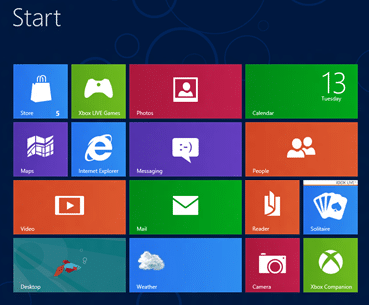
However, Windows 10 in tablet mode also looks like this, but will have a Start button (white flag).
Windows XP.
If you have the word “start” in a green background is Windows XP.

Another way of find out is by pressing and holding the Windows Key while single pressing the Pause/Break button (or click Settings -> System -> About). This will bring up the About page and show which Edition of Windows you have installed.
E&OE. Copying of this document, or text & images associated with it, is strictly prohibited. Imagery taken from Microsoft software is solely used for advice and training, Microsoft , Microsoft Windows and Microsoft Office are either registered trademarks or trademarks of Microsoft Corporation in the United States and/or other countries. Pro Logic Computers (UK) Ltd or its agents accept no responsibility for the content of this document or results from actions taken by it. This document is provided as is, with no warranty or liability.