

Introduction:
This article explains how to add, edit or delete contacts from your corporate directory on your VoIP phones.
Prerequisites:
Before we begin you will need;
- Your UBOSS Username (usually your email address)
- Your UBOSS Password
- BLF service active on the user(s) you wish to edit.
Technical Level:
Mid
Editing a users BLFs will only apply to that users supported devices. It is a per user setting, so must be updated an all users that require the alteration.
1. Login to the UBOSS portal.
Open your browser and go to prologic.uboss.com, sign in with your UBOSS username (which usually is your email address) and password.
If you have forgotten your password use the “Forgot Password” link for a password reset request.

2. User BLF Service.
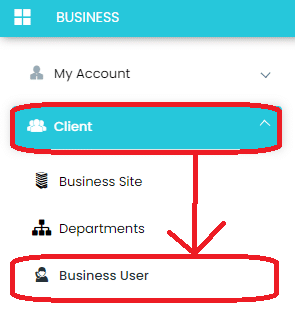
Click on Client -> Business Users.
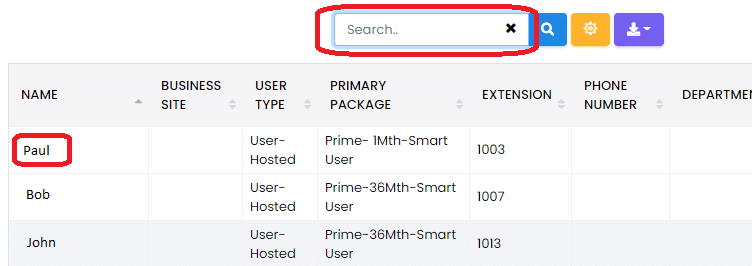
Select the user from the list by clicking their name, you can use the search if required.
Once you have select the user click on Service Configuration at the top.

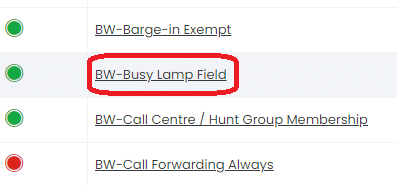
Click on the BW-Busy Lamp Field service.
3. Edit the BLF Service.
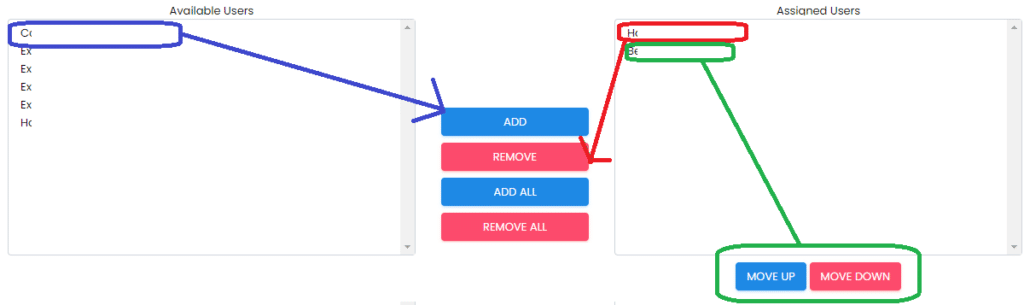
The entries on the right are extensions who will be displayed on the phone.
To add someone to the BLF select the extension on the left and click the Add button (Blue guide lines).
To remove someone from the BLF select the extension on the right and click Remove (Red guide lines).
To change the order of which the BLFs are displayed select the extension on the right and click Move Up or Down. (Green guide lines).
Once you have finished click the Save button.
E&OE. Copying of this document, or text & images associated with it, is strictly prohibited. Imagery taken from Microsoft software is solely used for advice and training, Microsoft , Microsoft Windows and Microsoft Office are either registered trademarks or trademarks of Microsoft Corporation in the United States and/or other countries. Pro Logic Computers (UK) Ltd or its agents accept no responsibility for the content of this document or results from actions taken by it. This document is provided as is, with no warranty or liability.