

Introduction:
This article explains how to change your Microsoft 365 password.
Prerequisites:
Before we begin you will need;
- Your email Address
- Your Email Password
- Your Multi Factor Authentication Device (if you have it setup)
Technical Level:
Low
1. Open your web browser.
Open your web browser, such as Edge, Chrome or Firefox.
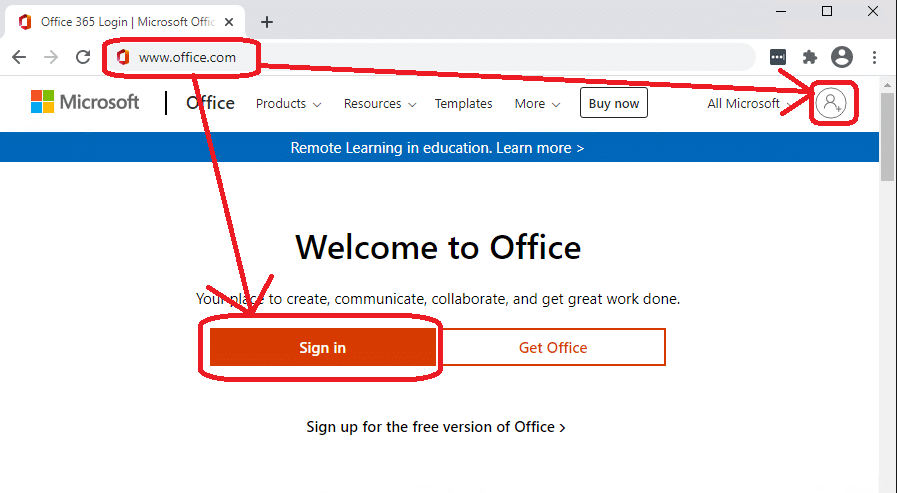
In the address bar (at the top) type in www.office.com and press enter. Then click Sign In or the sign in icon.
2. Sign in to your account.
Confirm your email address and click Next.
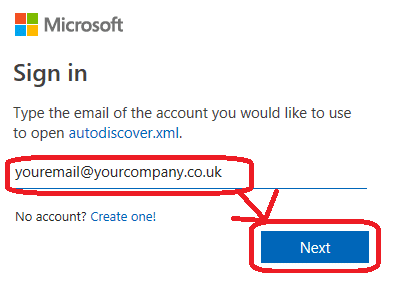
If asked select Work or School account.

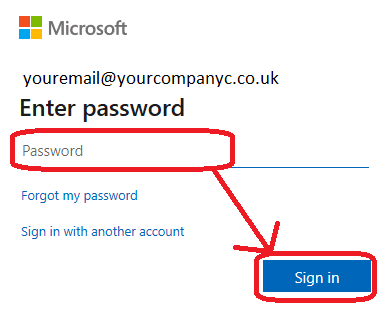
Type in your email password and click Sign In
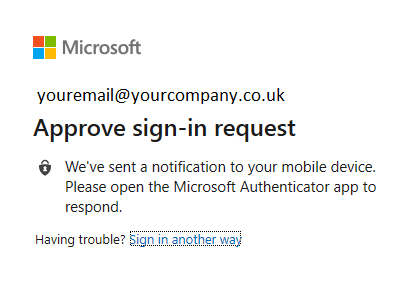
3. Multi-factor Authentication (MFA)
Approve on your app
-Or-
Type in your code sent via SMS
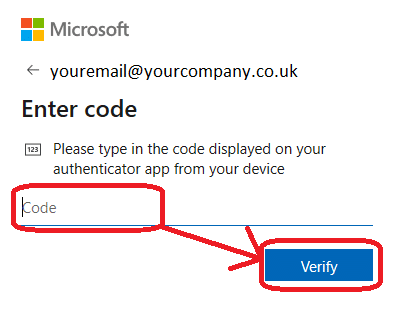
4. Open the Profile Page
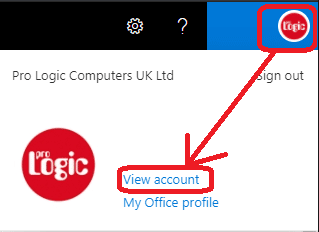
Click on your Name in the top right and click View account.
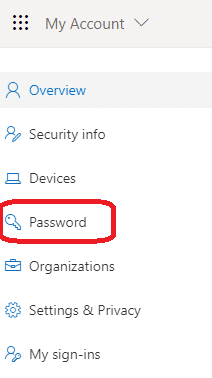
Click Password on the left.
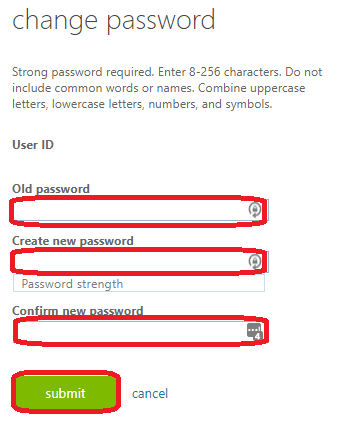
Type in your old password, then your new password twice. Confirm by click Submit.
You will be signed out of all your Microsoft 365 account and will need to enter your new password.
You’re done.
E&OE. Copying of this document, or text & images associated with it, is strictly prohibited. Imagery taken from Microsoft software is solely used for advice and training, Microsoft , Microsoft Windows and Microsoft Office are either registered trademarks or trademarks of Microsoft Corporation in the United States and/or other countries. Pro Logic Computers (UK) Ltd or its agents accept no responsibility for the content of this document or results from actions taken by it. This document is provided as is, with no warranty or liability.