

Introduction:
This article explains how to add an Office 365 email account to the Mail App on an iOS (iPhone or iPad) device.
Prerequisites:
Before we begin you will need;
- Your Email Address
- Your Email Password
- iOS v12 or above
Technical Level:
Low
From your iPhone or iPad tap on Settings Icon.

Tap on Mail within Settings..

Tap on Accounts.
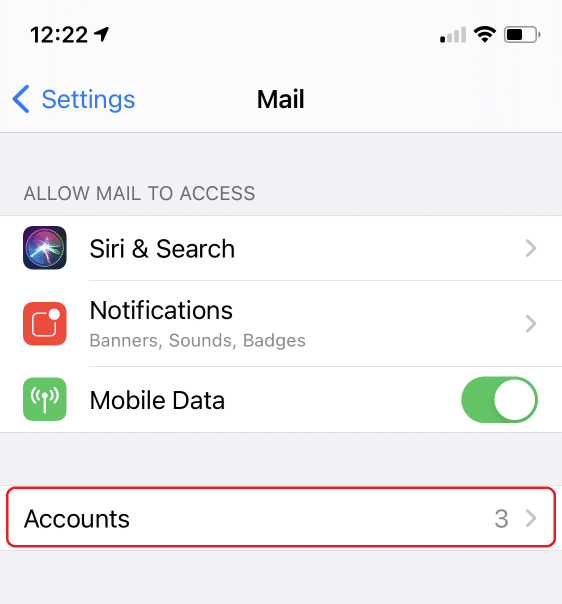
Tap Add Account..

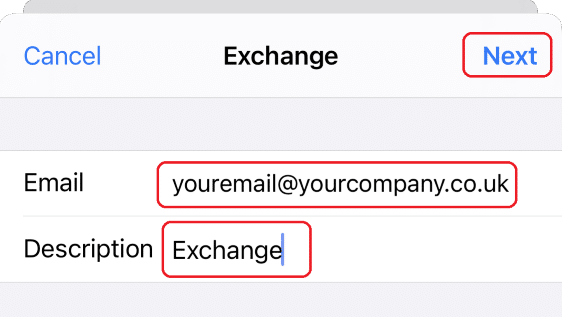
Select Exchange…

Type in your email address and a description of the account. The description can be anything you like (Work Email, Exchange, your email address).
Then tap Next…
Tap Sign In…
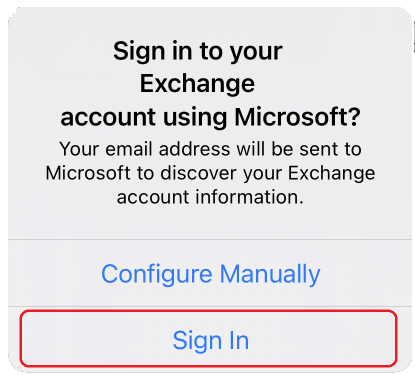
Enter your email password and click Sign In…

Select the items you which to Sync, we would advice them all. But if you only want to sync emails only select emails.
Then tap Save…
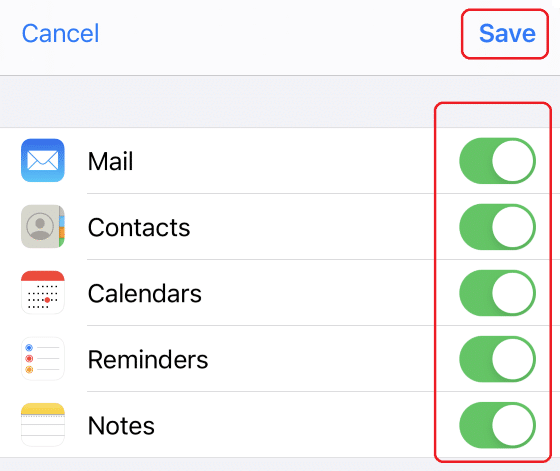
You’re done. Open the Apple Mail app and you should see your emails.
E&OE. Copying of this document, or text & images associated with it, is strictly prohibited. Imagery taken from Apple software is solely used for advice and training, Apple, iPhone and iPhone are either registered trademarks or trademarks of Apple Inc in the United States and/or other countries. Pro Logic Computers (UK) Ltd or its agents accept no responsibility for the content of this document or results from actions taken by it. This document is provided as is, with no warranty or liability.